BASIC EXCEL SKILLS
GETTING STARTED
When you open Excel, this is how it looks.

There are 5 important areas in the screen.
1. Quick Access Toolbar: This is a place where all the important tools can be placed. When you start Excel for the very first time, it has only 3 icons (Save, Undo, Redo). But you can add any feature of Excel to to Quick Access Toolbar so that you can easily access it from anywhere (hence the name).
2. Ribbon: Ribbon is like an expanded menu. It depicts all the features of Excel in easy to understand form. Since Excel has 1000s of features, they are grouped in to several ribbons. The most important ribbons are – Home, Insert, Formulas, Page Layout & Data.
3. Formula Bar: This is where any calculations or formulas you write will appear. You will understand the relevance of it once you start building formulas.
4. Spreadsheet Grid: This is where all your numbers, data, charts & drawings will go. Each Excel file can contain several sheets. But the spreadsheet grid shows few rows & columns of active spreadsheet. To see more rows or columns you can use the scroll bars to the left or at bottom. If you want to access other sheets, just click on the sheet name (or use the shortcut CTRL+Page Up or CTRL+Page Down).
5. Status bar: This tells us what is going on with Excel at any time. You can tell if Excel is busy calculating a formula, creating a pivot report or recording a macro by just looking at the status bar. The status bar also shows quick summaries of selected cells (count, sum, average, minimum or maximum values). You can change this by right clicking on it and choosing which summaries to show.
GETTING STARTED WITH EXCEL – 10 MINUTE VIDEO TUTORIAL
ENTERING & FORMATTING DATA, NUMBERS & TABLES
RESOURCES TO LEARN DATA HANDLING & FORMATTING
Typing & Formatting Data in Excel
8 tips for formatting your workbooks
Impressing your boss with spreadsheet formatting
Introduction to Excel Tables
Use Tables to handle data better
CALCULATING TOTALS & SUMMARIES USING FORMULAS
RESOURCES TO LEARN EXCEL FORMULAS
Introduction to Formulas
Introduction to IF formula in Excel
Top 10 formulas for aspiring analysts & managers
15 important formulas for everyone
51 Everyday Excel formulas explained in plain English
BOOKS TO LEARN EXCEL FORMULAS
75 Excel Formulas
The VLOOKUP Book
COURSES TO LEARN EXCEL FORMULAS
Excel Formula Crash Course (60 formulas, 31 lessons)
The VLOOKUP Video Book (VLOOKUP and other important formulas demystified)
CONDITIONAL FORMATTING
RESOURCES TO LEARN ADVANCED CONDITIONAL FORMATTING
What is conditional formatting
Introduction to Conditional Formatting
5 Tips on CF
Highlighting Duplicates
More
CREATING REPORTS QUICKLY
RESOURCES ON REPORTS & CHARTS
Pivot Tables – Quick & easy reporting feature of Excel
Creating a pivot report
How to select correct chart for any situation?
Making a chart in Excel
USING EXCEL PRODUCTIVELY
It is not enough to know various features of Excel. As a beginner, it helps to know how to use Excel productively. This includes knowing important keyboard shortcuts, mouse shortcuts, work-arounds, Excel customizations & how to make everything looks slick.
RESOURCE TO USE EXCEL PRODUCTIVELY
Keyboard Shortcuts
Mouse Shortcuts
Excel Productivity Tips
Making better Excel workbooks
Important shortcuts & productivity tricks
Top 10 things you can do in Excel in 10 minutes
BEYOND BASICS – BECOMING AWESOME IN EXCEL
Once you know the basics, chances are you will be asking for more. The reason is simple. Anyone with good Excel skills is always in demand. Your bosses love you because you can get things done easily. Your customers love you becuase you create impressive things. Your colleagues envy you becuase your workbooks are shining and easy to use. And you want more, because you have seen the amazing results of Excel.
This is where learning Excel pays off. I highly recommend you to join my most comprehensive Excel training program – Excel School. It is an entirely online course that can be done at your own pace from the comfort of your home (or office). The course has more than 24 hours of training videos, 50+ downloadable workbooks, in-depth coverage of all the important areas of Excel usage to make you awesome. To date, more than 5,000 people have enrolled in Excel School and became champions at their work.
Click here to learn more about Excel School Program.
Introduction to Microsoft Excel 101
What is Microsoft Excel?
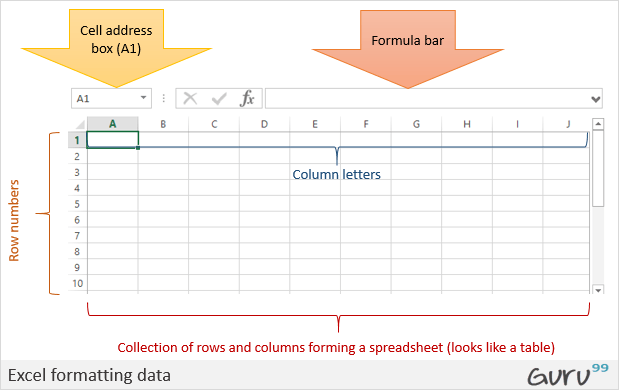
Microsoft Excel is a spreadsheet program that is used to record and analyse numerical data. Think of a spreadsheet as a collection of columns and rows that form a table. Alphabetical letters are usually assigned to columns and numbers are usually assigned to rows. The point where a column and a row meet is called a cell. The address of a cell is given by the letter representing the column and the number representing a row. Let's illustrate this using the following image.
Why Should I Learn Microsoft Excel?
We all deal with numbers in one way or the other. We all have daily expenses which we pay for from the monthly income that we earn. For one to spend wisely, they will need to know their income vs. expenditure. Microsoft Excel comes in handy when we want to record, analyze and store such numeric data.
Where can I get Microsoft Excel?
There are number of ways in which you can get Microsoft Excel. You can buy it from a hardware computer shop that also sells software. Microsoft Excel is part of the Microsoft Office suite of programs. Alternatively, you can download it from the Microsoft website but you will have to buy the license key.

In this tutorial, we are going to cover the following topics.
- How to Open Microsoft Excel?
- Understanding the Ribbon
- Understanding the worksheet
- Customization Microsoft Excel Environment
- Important Excel shortcuts
How to Open Microsoft Excel?
Running Excel is not different from running any other Windows program. If you are running Windows with a GUI like (Windows XP, Vista, and 7) follow the following steps.
- Click on start menu
- Point to all programs
- Point to Microsoft Excel
- Click on Microsoft Excel
Alternatively, you can also open it from the start menu if it has been added there. You can also open it from the desktop shortcut if you have created one.
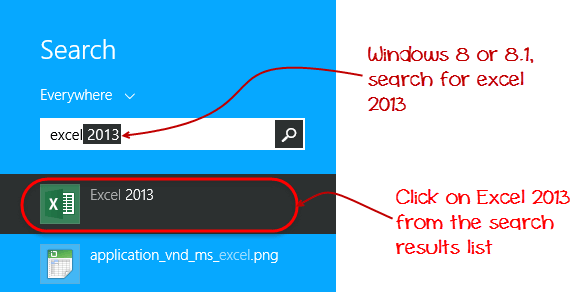
For this tutorial, we will be working with Windows 8.1 and Microsoft Excel 2013. Follow the following steps to run Excel on Windows 8.1
- Click on start menu
- Search for Excel N.B. even before you even typing, all programs starting with what you have typed will be listed.
- Click on Microsoft Excel
The following image shows you how to do this
Understanding the Ribbon
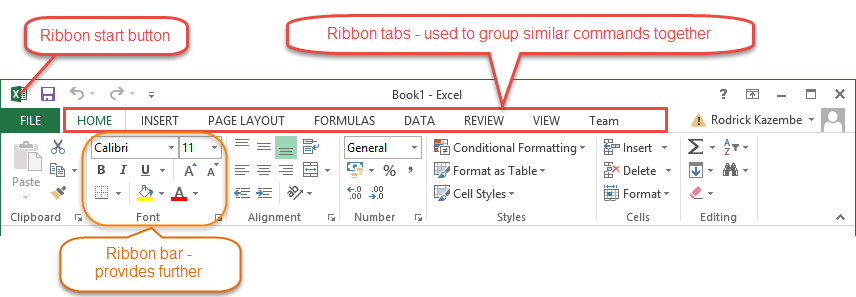
The ribbon provides shortcuts to commands in Excel. A command is an action that the user performs. An example of a command is creating a new document, printing a documenting, etc. The image below shows the ribbon used in Excel 2013.
Ribbon components explained
Ribbon start button - it is used to access commands i.e. creating new documents, saving existing work, printing, accessing the options for customizing Excel, etc.
Ribbon tabs – the tabs are used to group similar commands together. The home tab is used for basic commands such as formatting the data to make it more presentable, sorting and finding specific data within the spreadsheet.
Ribbon bar – the bars are used to group similar commands together. As an example, the Alignment ribbon bar is used to group all the commands that are used to align data together.
Understanding the worksheet (Rows and Columns, Sheets, Workbooks)
A worksheet is a collection of rows and columns. When a row and a column meet, they form a cell. Cells are used to record data. Each cell is uniquely identified using a cell address. Columns are usually labelled with letters while rows are usually numbers.
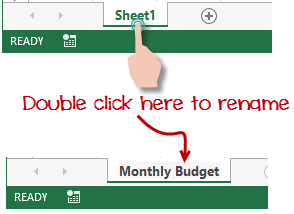
A workbook is a collection of worksheets. By default, a workbook has three cells in Excel. You can delete or add more sheets to suit your requirements. By default, the sheets are named Sheet1, Sheet2 and so on and so forth. You can rename the sheet names to more meaningful names i.e. Daily Expenses, Monthly Budget, etc.
Customization Microsoft Excel Environment
Personally I like the black colour, so my excel theme looks blackish. Your favourite colour could be blue, and you too can make your theme colour look blue-like. If you are not a programmer, you may not want to include ribbon tabs i.e. developer. All this is made possible via customizations. In this sub-section, we are going to look at;
- Customization the ribbon
- Setting the colour theme
- Settings for formulas
- Proofing settings
- Save settings
Customization of ribbon

The above image shows the default ribbon in Excel 2013. Let's start with customization the ribbon, suppose you do not wish to see some of the tabs on the ribbon, or you would like to add some tabs that are missing such as the developer tab. You can use the options window to achieve this.
- Click on the ribbon start button
- Select options from the drop down menu. You should be able to see an Excel Options dialog window
- Select the customize ribbon option from the left-hand side panel as shown below
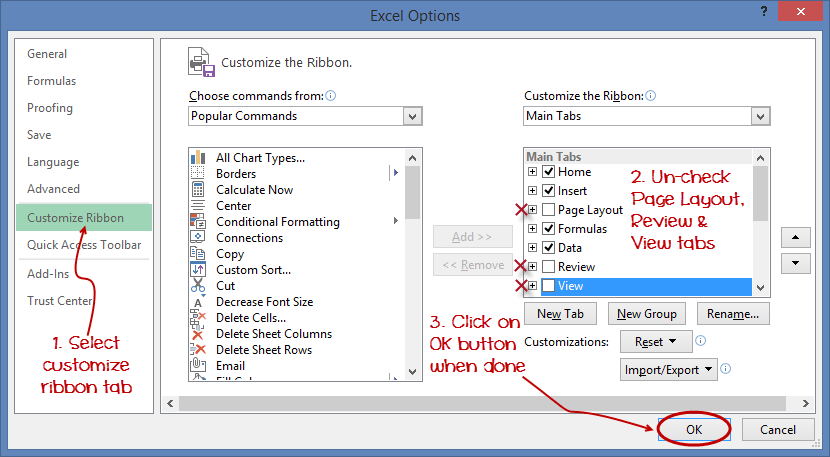
- On your right-hand side, remove the check marks from the tabs that you do not wish to see on the ribbon. For this example, we have removed Page Layout, Review, and View tab.
- Click on the "OK" button when you are done.
Your ribbon will look as follows

Adding custom tabs to the ribbon
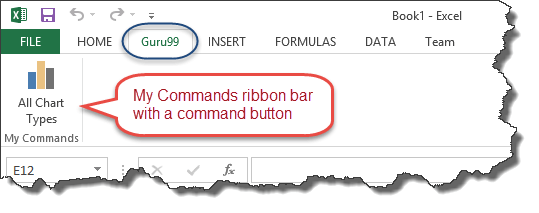
You can also add your own tab, give it a custom name and assign commands to it. Let's add a tab to the ribbon with the text Guru99

- Right click on the ribbon and select Customize the Ribbon. The dialogue window shown above will appear
- Click on new tab button as illustrated in the animated image below
- Select the newly created tab
- Click on Rename button
- Give it a name of Guru99
- Select the New Group (Custom) under Guru99 tab as shown in the image below
- Click on Rename button and give it a name of My Commands
- Let's now add commands to my ribbon bar
- The commands are listed on the middle panel
- Select All chart types command and click on Add button
- Click on OK
Your ribbon will look as follows
Setting the colour theme
To set the color-theme for your Excel sheet you have to go to Excel ribbon, and click on à File àOption command. It will open a window where you have to follow the following steps.
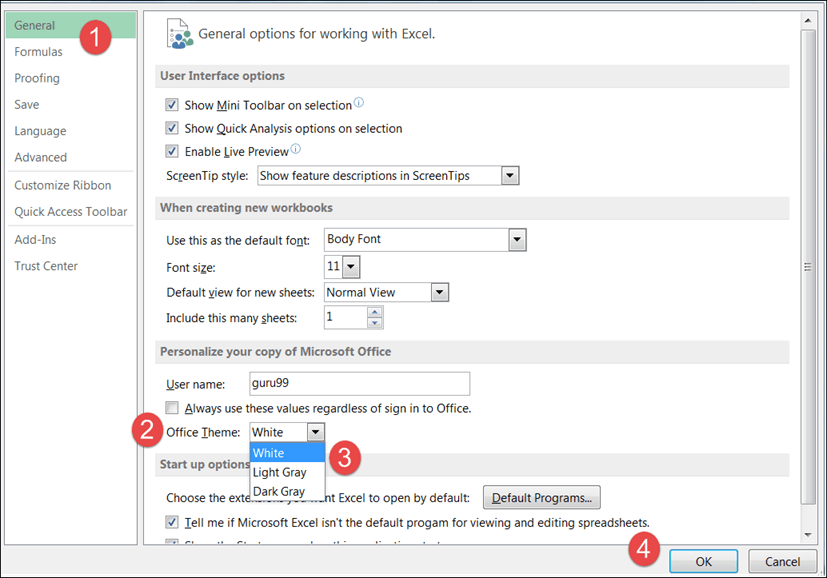
- The general tab on the left-hand panel will be selected by default.
- Look for colour scheme under General options for working with Excel
- Click on the colour scheme drop-down list and select the desired colour
- Click on OK button
Settings for formulas
This option allows you to define how Excel behaves when you are working with formulas. You can use it to set options i.e. autocomplete when entering formulas, change the cell referencing style and use numbers for both columns and rows and other options.
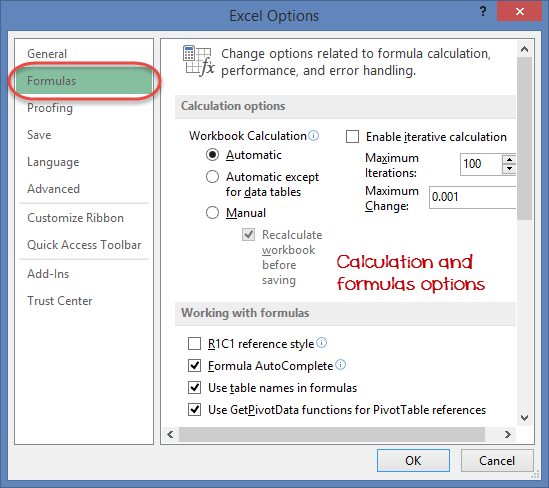
If you want to activate an option, click on its check box. If you want to deactivate an option, remove the mark from the checkbox. You can this option from the Options dialogue window under formulas tab from the left-hand side panel
Proofing settings
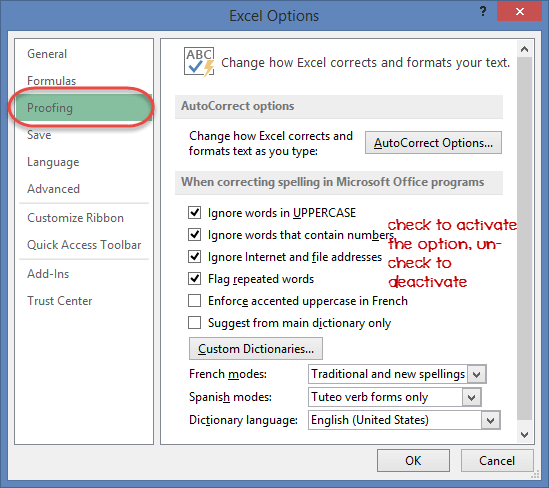
This option manipulates the entered text entered into excel. It allows setting options such as the dictionary language that should be used when checking for wrong spellings, suggestions from the dictionary, etc. You can this option from the options dialogue window under the proofing tab from the left-hand side panel
Save settings
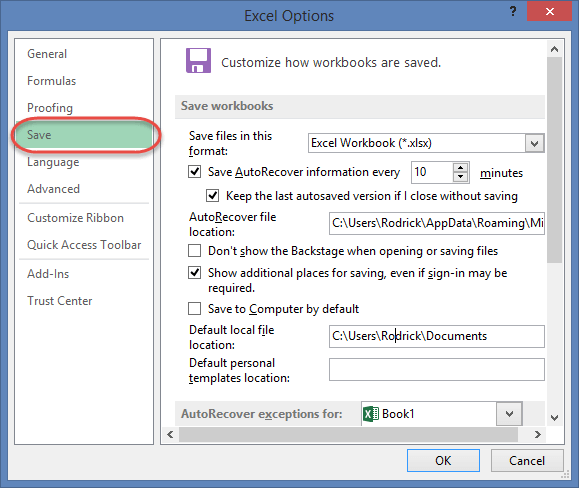
This option allows you to define the default file format when saving files, enable auto recovery in case your computer goes off before you could save your work, etc. You can use this option from the Options dialogue window under save tab from the left-hand side panel
Important Excel shortcuts
| Ctrl + P | used to open the print dialogue window |
| Ctrl + N | creates a new workbook |
| Ctrl + S | saves the current workbook |
| Ctrl + C | copy contents of current select |
| Ctrl + V | paste data from the clipboard |
| SHIFT + F3 | displays the function insert dialog window |
| SHIFT + F11 | Creates a new worksheet |
| F2 | Check formula and cell range covered |
Best Practices when working with Microsoft Excel
- Save workbooks with backward compatibility in mind. If you are not using the latest features in higher versions of Excel, you should save your files in 2003 *.xls format for backwards compatibility
- Use description names for columns and worksheets in a workbook
- Avoid working with complex formulas with many variables. Try to break them down into small managed results that you can use to build on
- Use built-in functions whenever you can instead of writing your own formulas


Your teacher - Chandoo
My name is Chandoo and I will be your teacher in Excel School program. I have been training people on Excel, Power BI, Power Pivot and analytics for over a decade. My teaching is practical and hands-on with several real world examples. I have taught more than 20,000 people to date (online and offline) and I would love to help you. I live in coastal city of Wellington in New Zealand with my beautiful wife and two kids.


I am thankful to all the readers and supporters of Chandoo.org. Thank you for considering my Excel School program. I am excited to share this powerful course with you so that you can be awesome at what you do. Thank you. 
PS: As of writing this, more than 600 students have already enrolled in Excel School 2.0. Don’t miss out the chance to learn and use powerful features of Excel.
Comments
Post a Comment